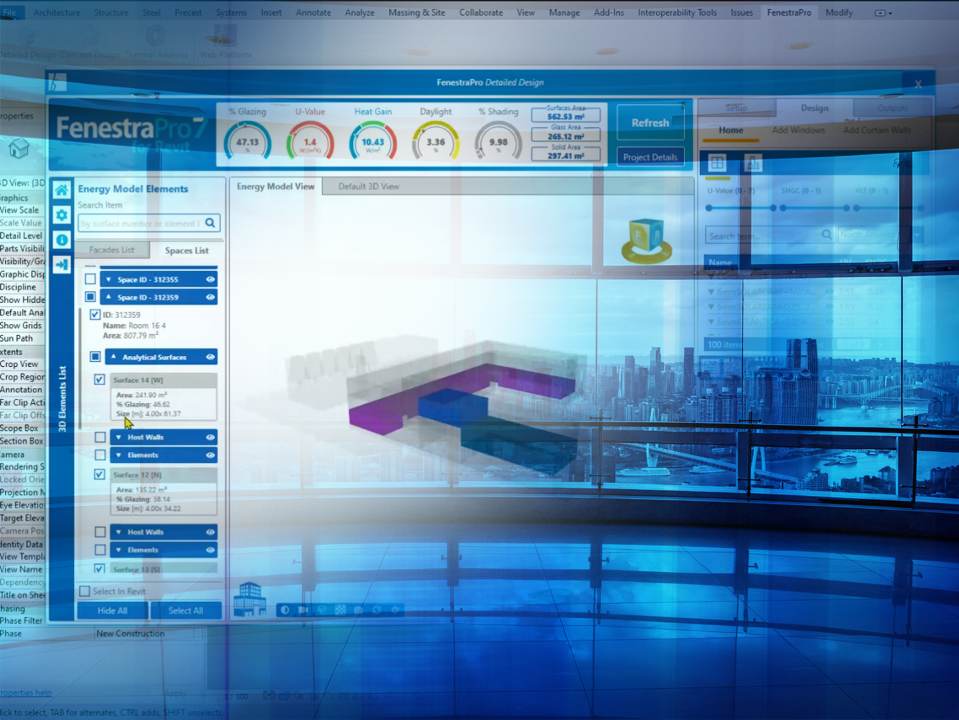
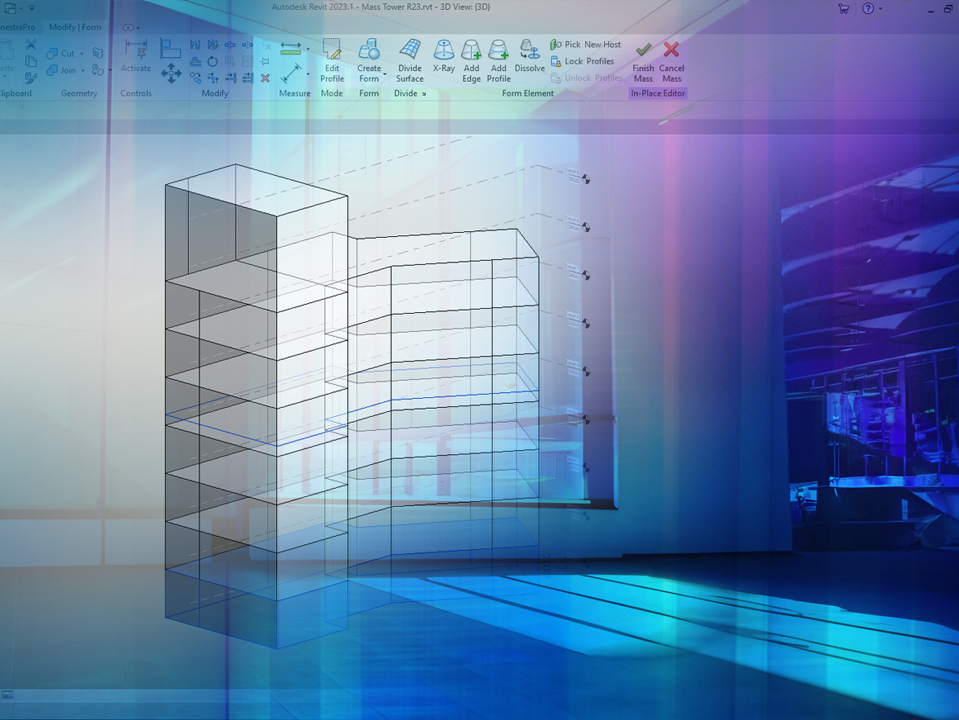
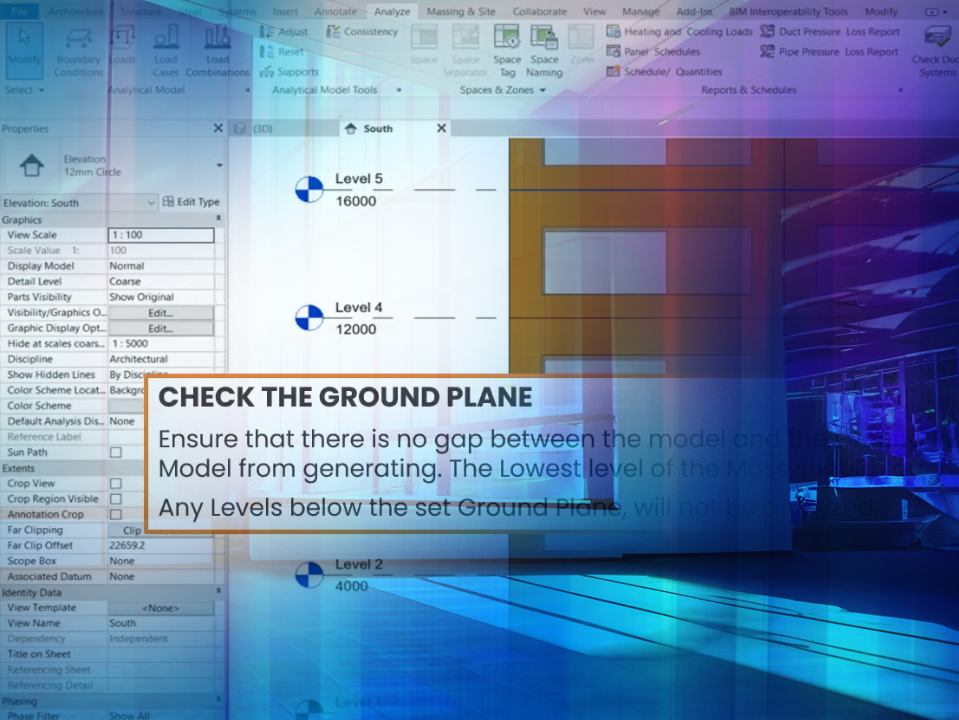
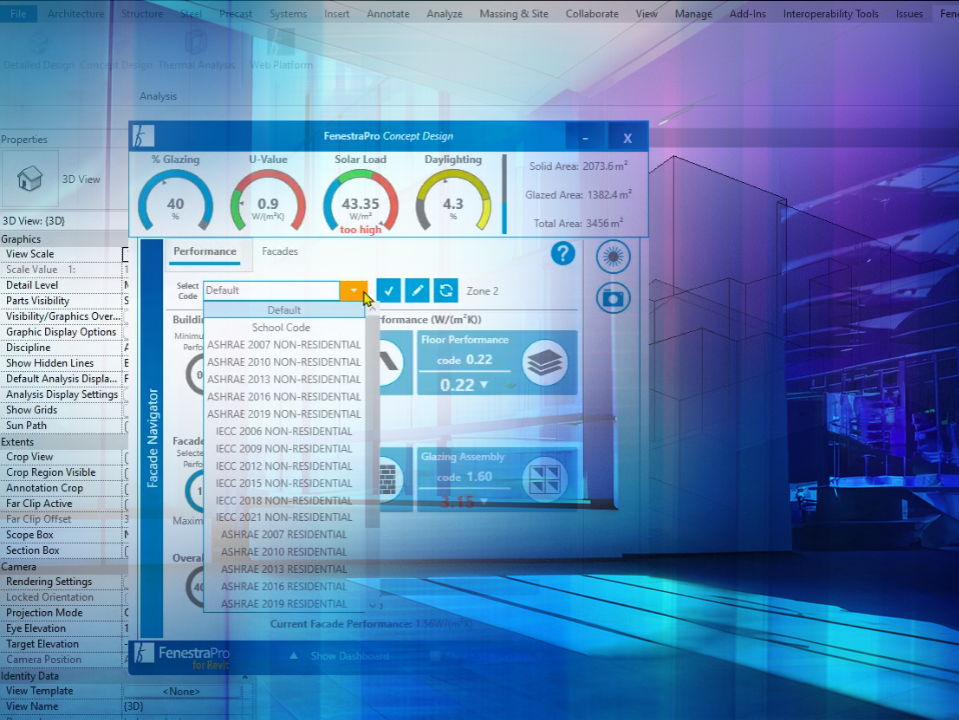
Our User Focused Resource to Introduce you to FenestraPro.

Learning Platform

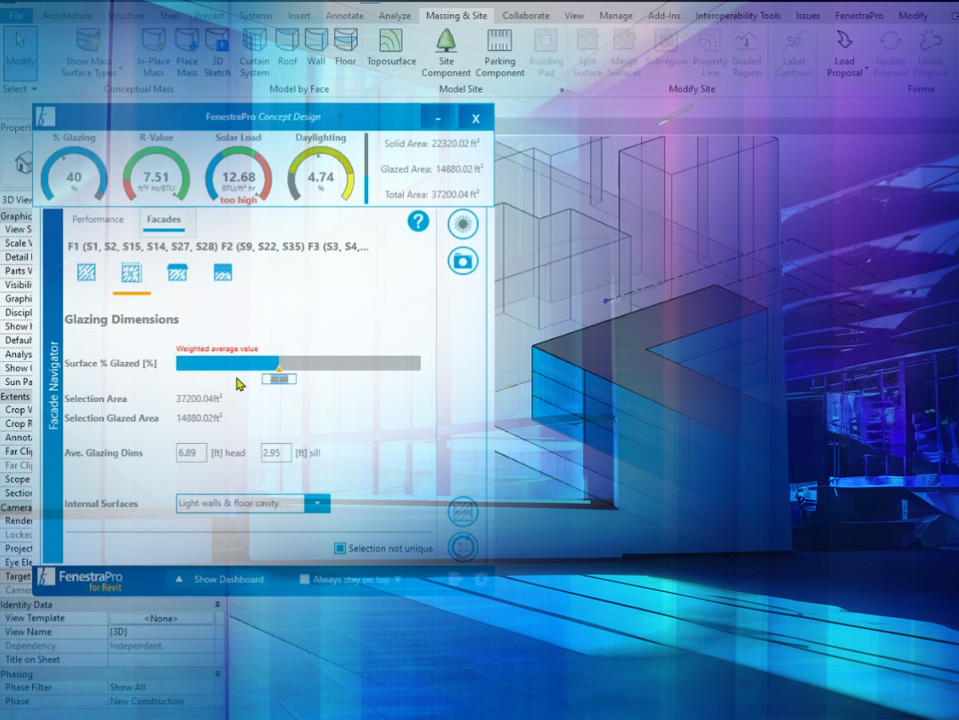
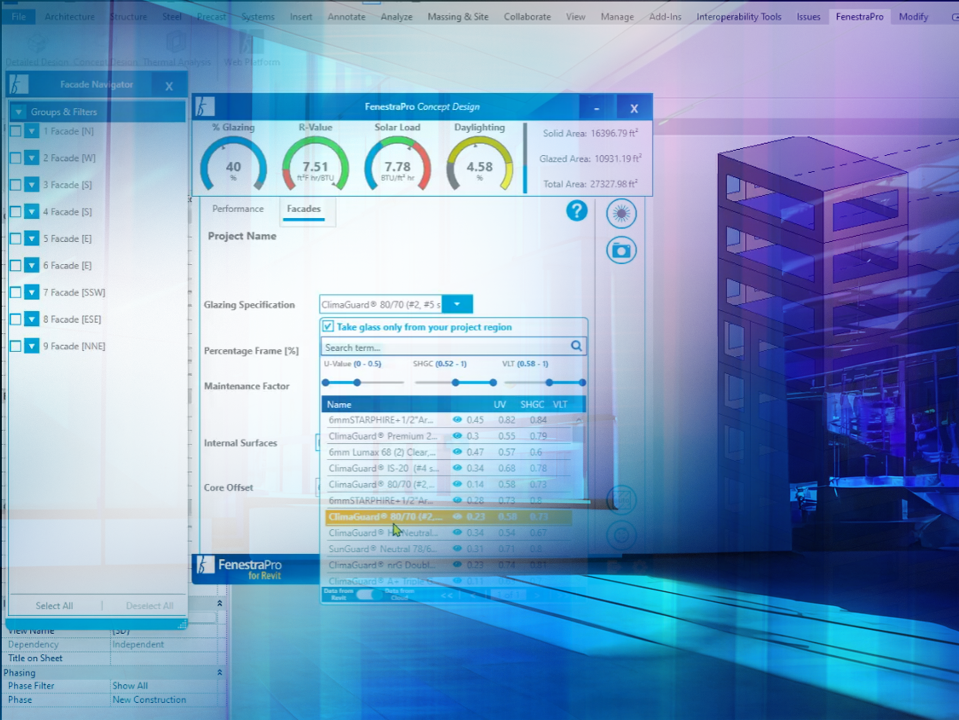
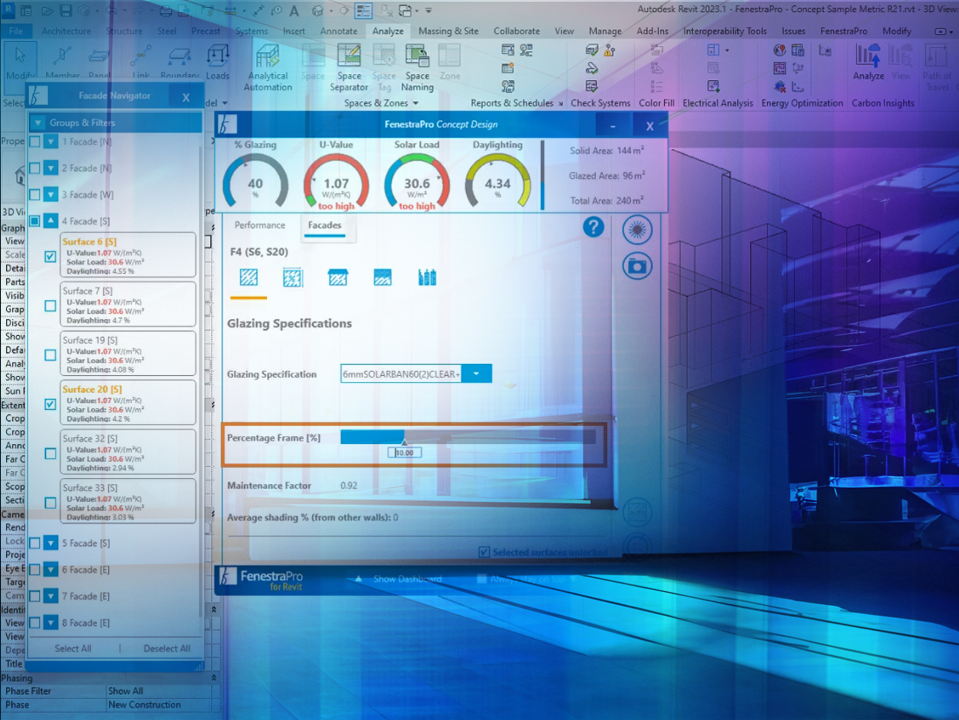
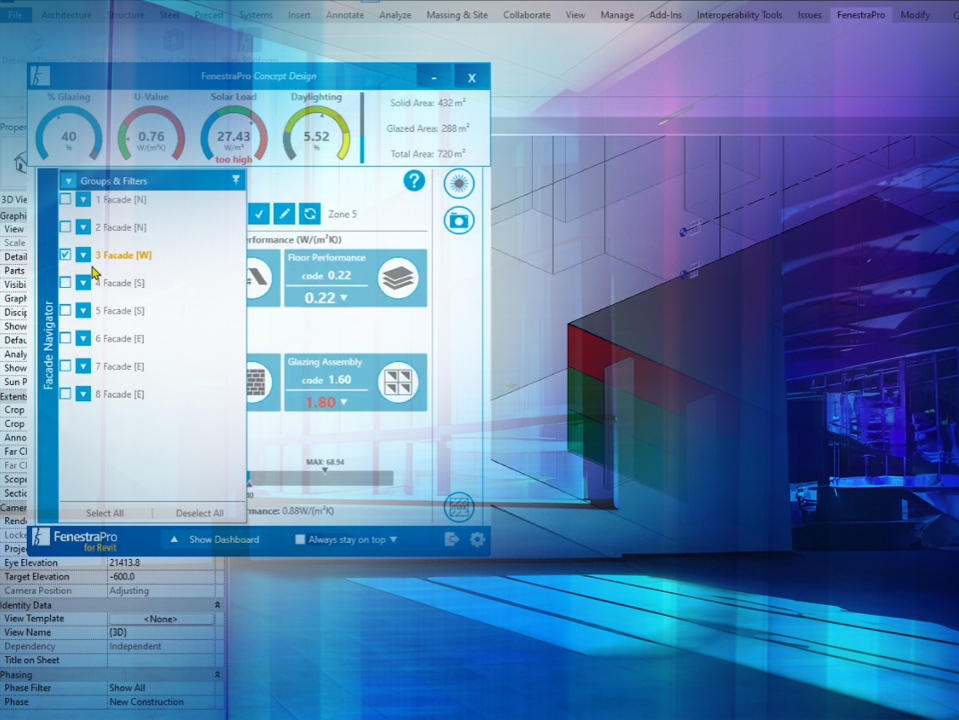
FenestraPro Learning is a user focused resource to introduce you to the FenestraPro applications, and provides a series of instructional videos, broken down into easy to digest bite sizes. Jump to Learning Support section.

Explore the range of instructional videos below.

AIA Course.

An overview of the considerations to be reviewed for façade design at different design stages, giving architects a better understanding of the implications of their design decisions. In particular, this will cover the effects of passive characteristics such as solar, thermal and daylighting, and how these can be managed and optimized through decisions around geometry and materiality.

AIA 2030

Duration: 29m 59s.

Introduction.

An introduction to why Energy Analysis is important at an early stage and the functions and features of the Tools.

General Introduction

Duration: 6m 05s.

Features in Concept & Detailed Tools

Duration: 5m 28s.

Getting Started.

Learn how to create an Account with FenestraPro, navigate model types, typical workflows and user interfaces.

Account Creation

Duration: 2m 35s.

User Interface – Detailed Tool

Duration: 8m 00s.

Navigation in the Detailed Tool

Duration: 6m 13s.

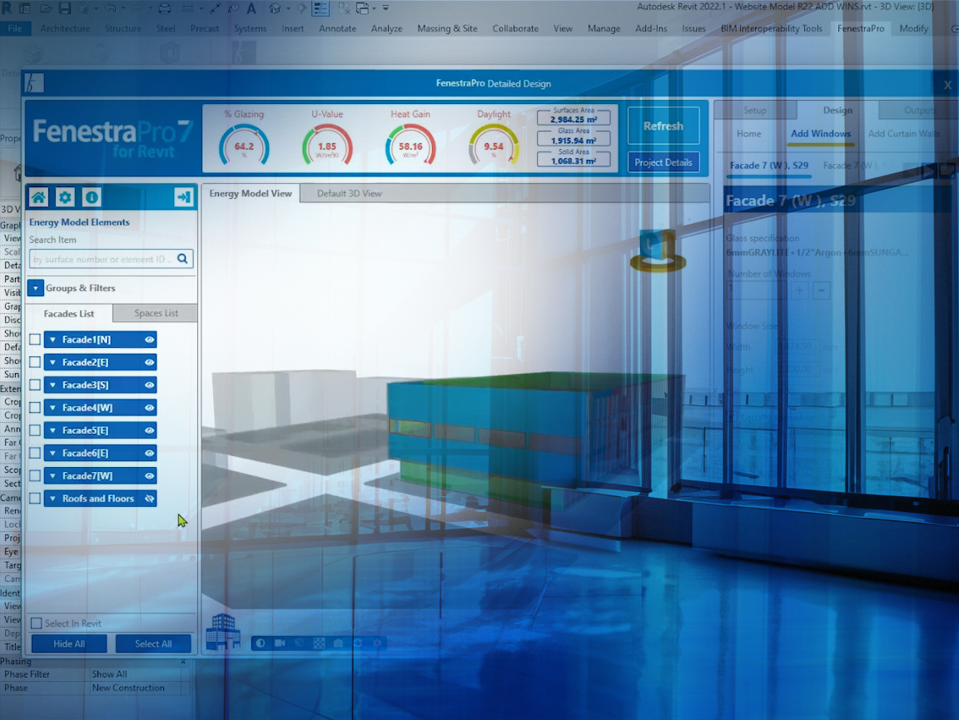
Detailed Workflow

Duration: 9m 34s.

Conceptual Models.

Learn how to create a mass model that works best with FenestraPro, make selections, define settings for your project areas, navigate the model, assign glass types, generate glazing on the model, create and customize Reports and review Shading Effects.

Create a Mass Model

Duration: 1m 02s.

Key Energy Settings

Duration: 3m 54s.

Using Energy Codes

Duration: 2m 06s.

Glass to Wall Ratio

Duration: 3m 43s.

Glazing Specifications

Duration: 3m 56s.

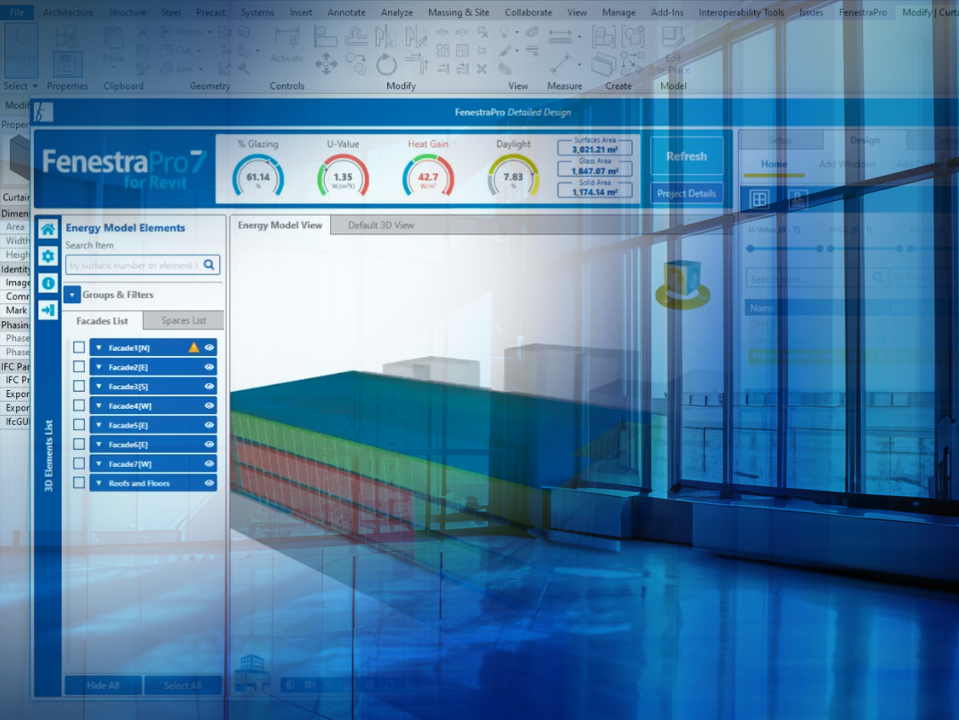
Façade Manager

Duration: 4m 00s.

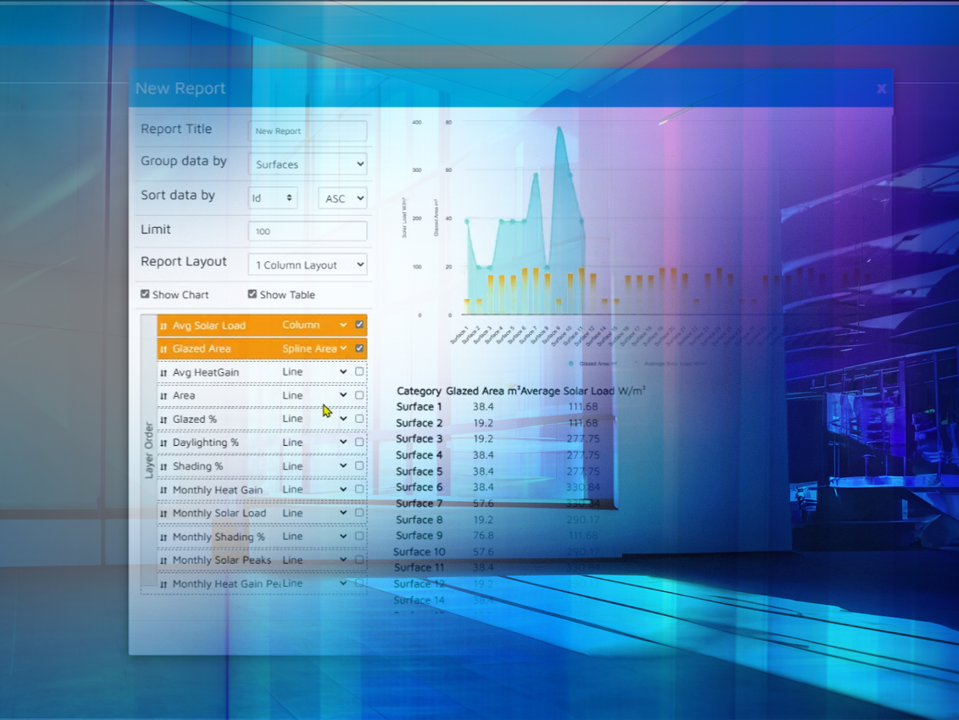
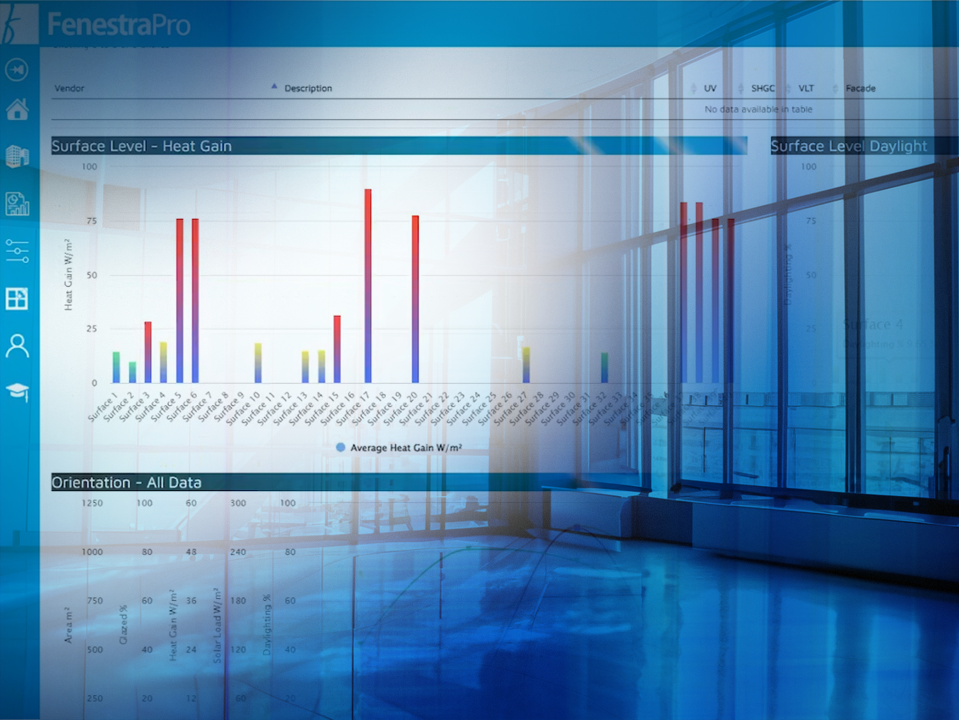
Reports

Duration: 2m 37s.

Shading Options

Duration: 3m 17s.

Detailed Models.

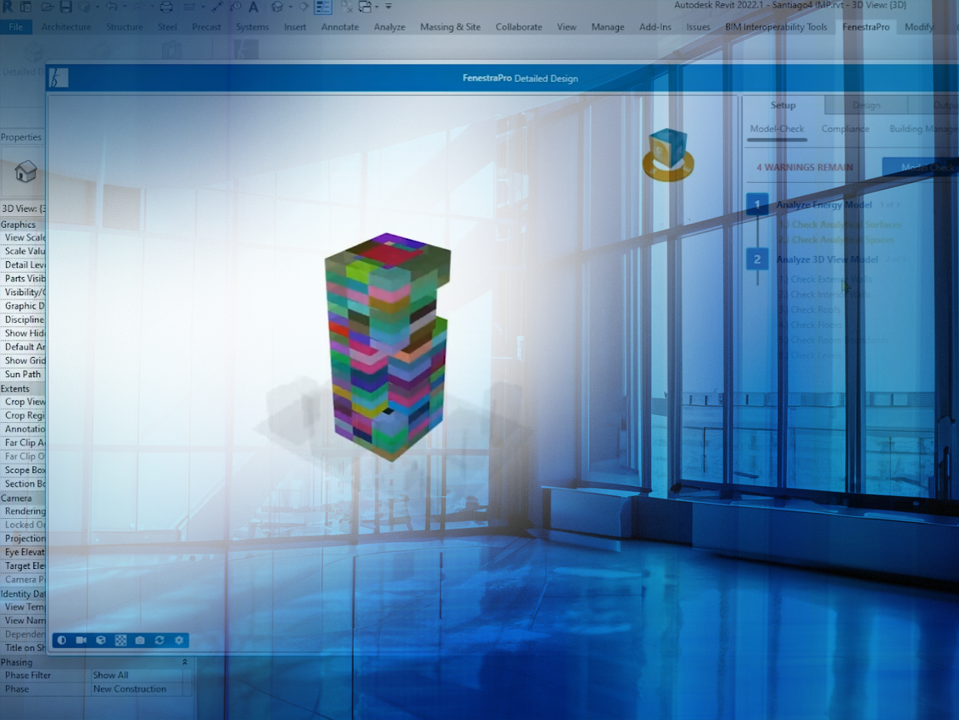
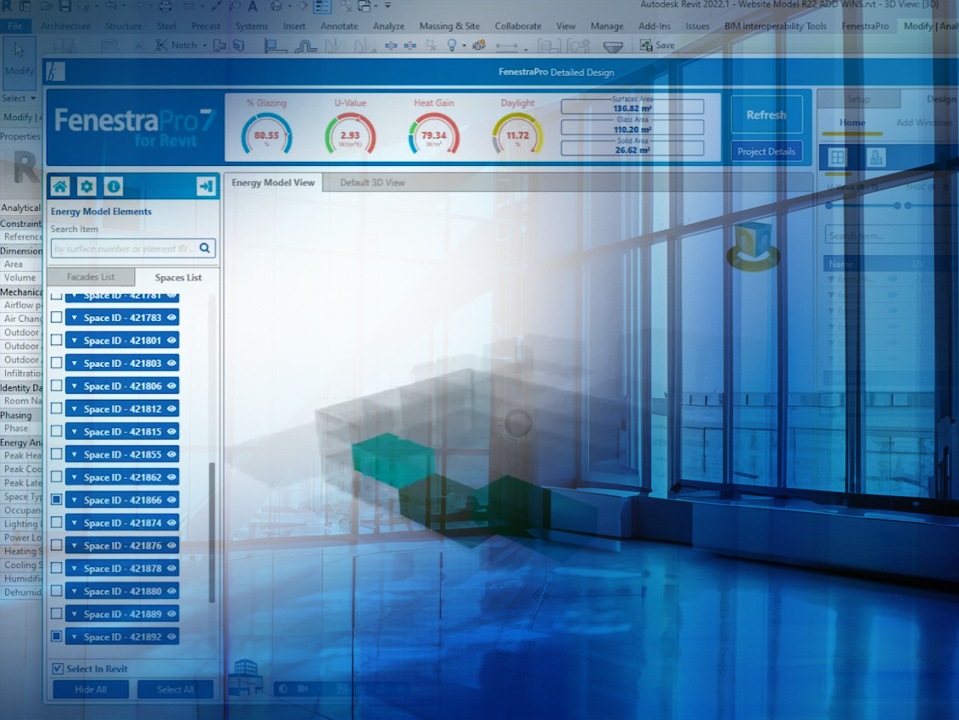
Learn how to onboard a Revit model, define settings for your project, override thermal properties, navigate the model, make selections, assign glass types, generate glazing on the model, create and customize Reports and review Shading Effects.

Launch & Setup

Duration: 6m 00s.

Navigation & Selections

Duration: 5m 05s.

Select & Apply Glazing

Duration: 4m 38s.

Generate Glazing on the model

Duration: 3m 09s.

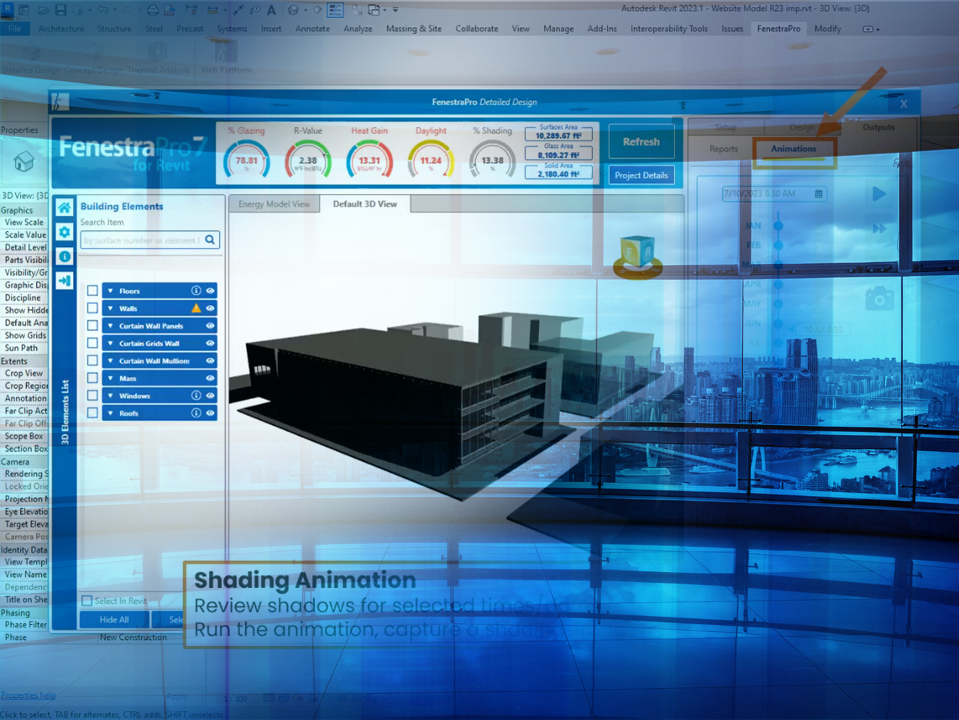
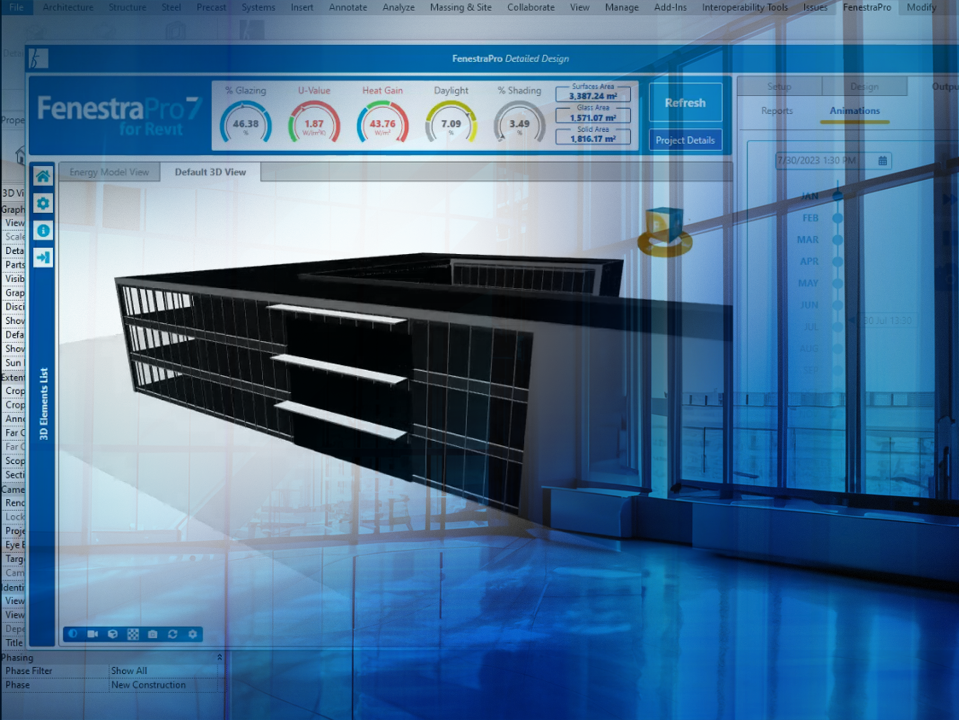
Outputs (Reports & Shading Animations)

Duration: 2m 10s.

Shading Options

Duration: 1m 09s.

Thermal Performance Tool.

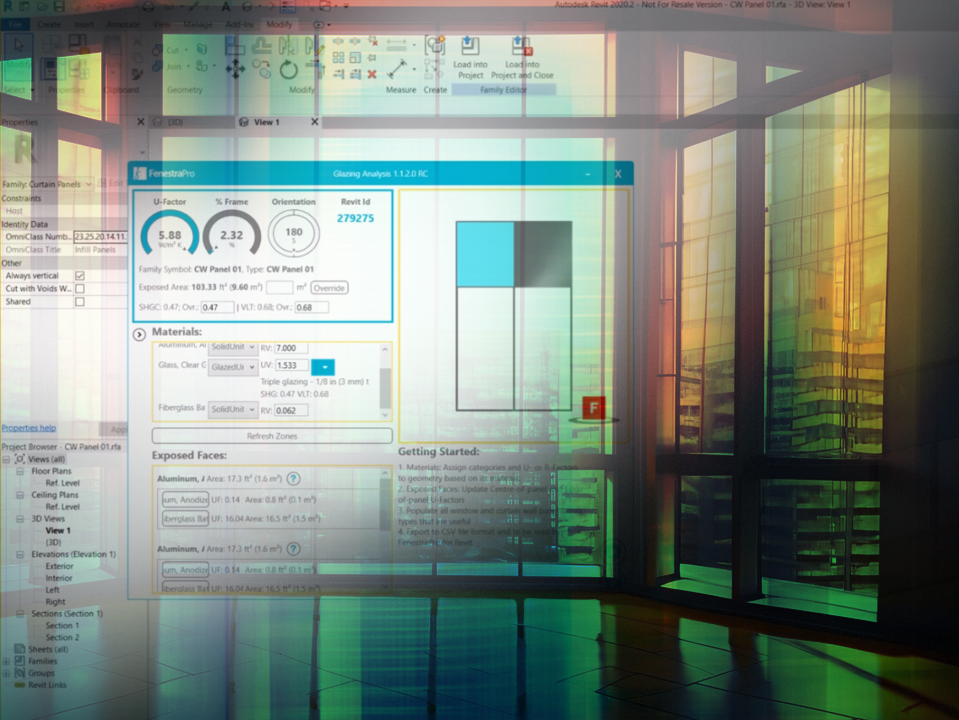
This will explain the use of the Tool for curtain panels and windows and the correct workflow to assign thermal properties to various materials and import back to FenestraPro.

Part 1 – Glazing parallel to wall plane

Duration: 25m 43s.

Part 2 – Glazing not parallel to wall plane

Duration: 15m 30s.

30-minute Micro Learning: Envelope Analysis

A short exercise is provided to assist with learning Envelope Analysis. There are 3 links provided below.

  • A PDF of instructions on creating a suitable model in Autodesk Forma. This will be the basis for a few questions.
  • A Video of the recommended workflow.
  • A Form containing the questions (in the second link below).

A video is also provided showing a typical workflow to create a suitable model for the exercise. Please read the instructions and watch the video. You may then create a model in Autodesk Forma as recommended, which can then be used with our ‘Envelope Analysis’ extension. You may then open the form, do the exercises and answer the questions. You may retry the questions until they are correct.

We hope that you find this educational and informative. The material is designed to introduce key concepts and practical examples to support your learning.

30-minute Micro Learning: FenestraPro for Revit

This section provides exercises to help your learning of our Revit Addin – FenestraPro for Revit.

There are three links provided below:

  • PDF to support the exercises
  • Download the Revit model
  • Question Form to submit your answers

Please download the Revit model provided. This is a Revit 2025 model in imperial units which you can open in Revit 2025 or Revit 2026.

Perform the exercises suggested and answer the questions. You will need to have FenestraPro for Revit version 9 installed. You may ask your administrator if this software is available for your company or you can get a 30 day trial version here.

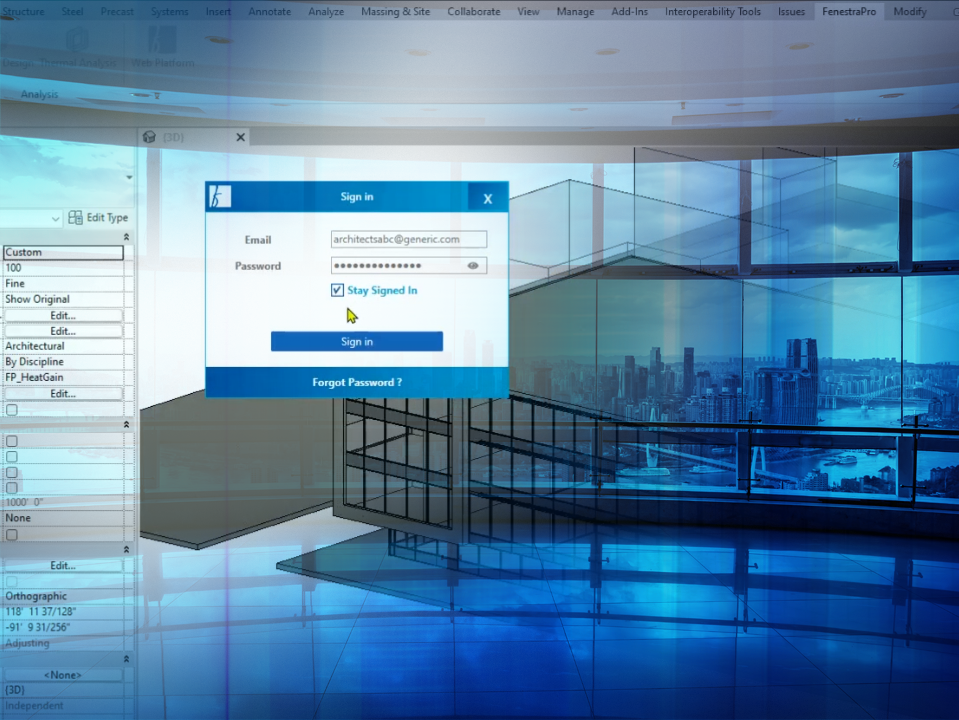
Open the model in Revit with FenestraPro installed. Navigate to the Revit menu where FenestraPro has its own tab. This is where the various tools may be launched. If you have just installed the application, when launching the Addin in Revit, you will need to enter your license number and login to your account using your credentials (your email and password).

Then follow the instructions in the question form, do the suggested exercises and answer the questions provided. You may change your answer if it is incorrect before moving on to the next question.
Contact us about any learning queries